MASS
Services → MASS manages BoostX-SDS volumes and drives through MASS Manager, which is deployed separately.
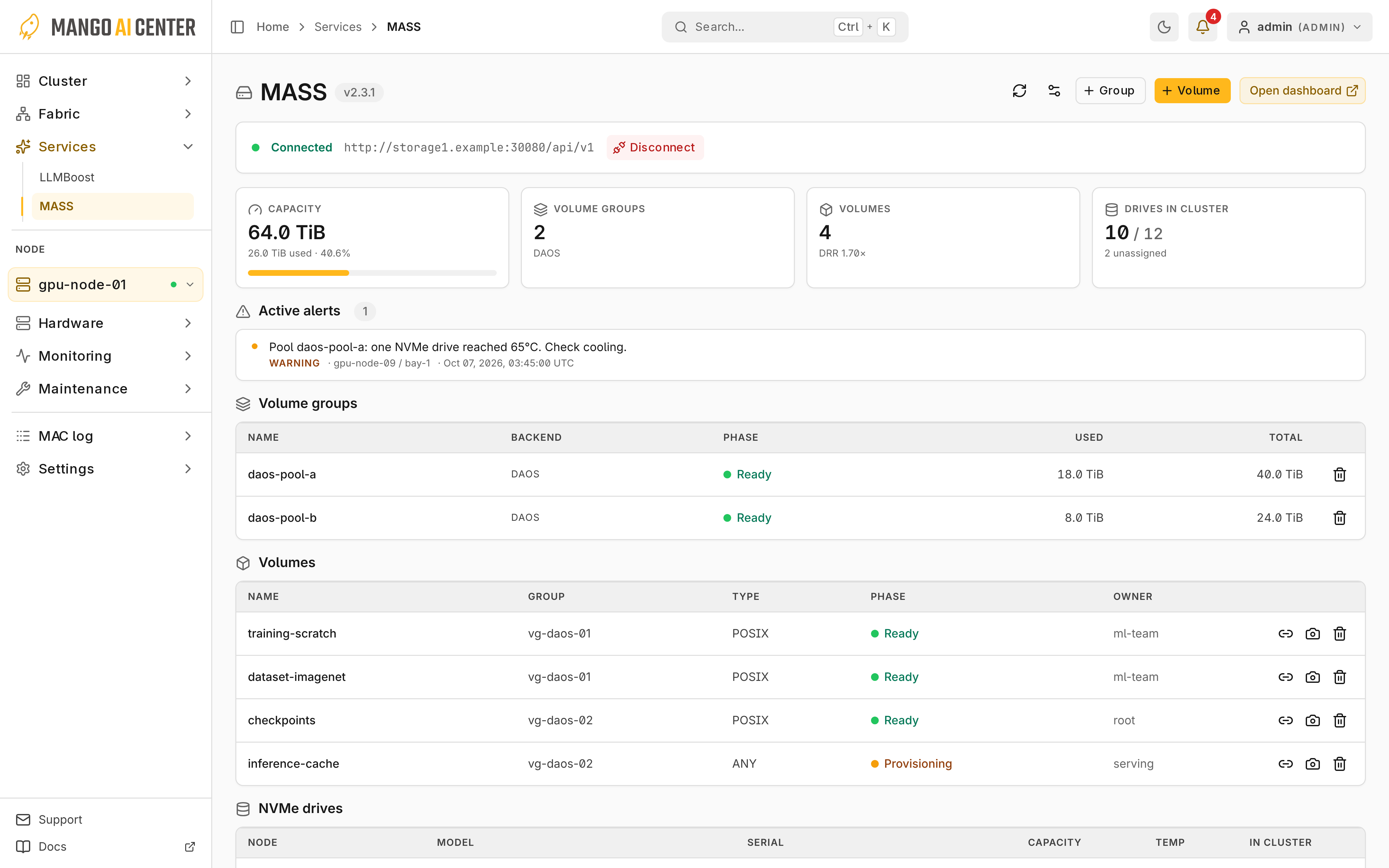
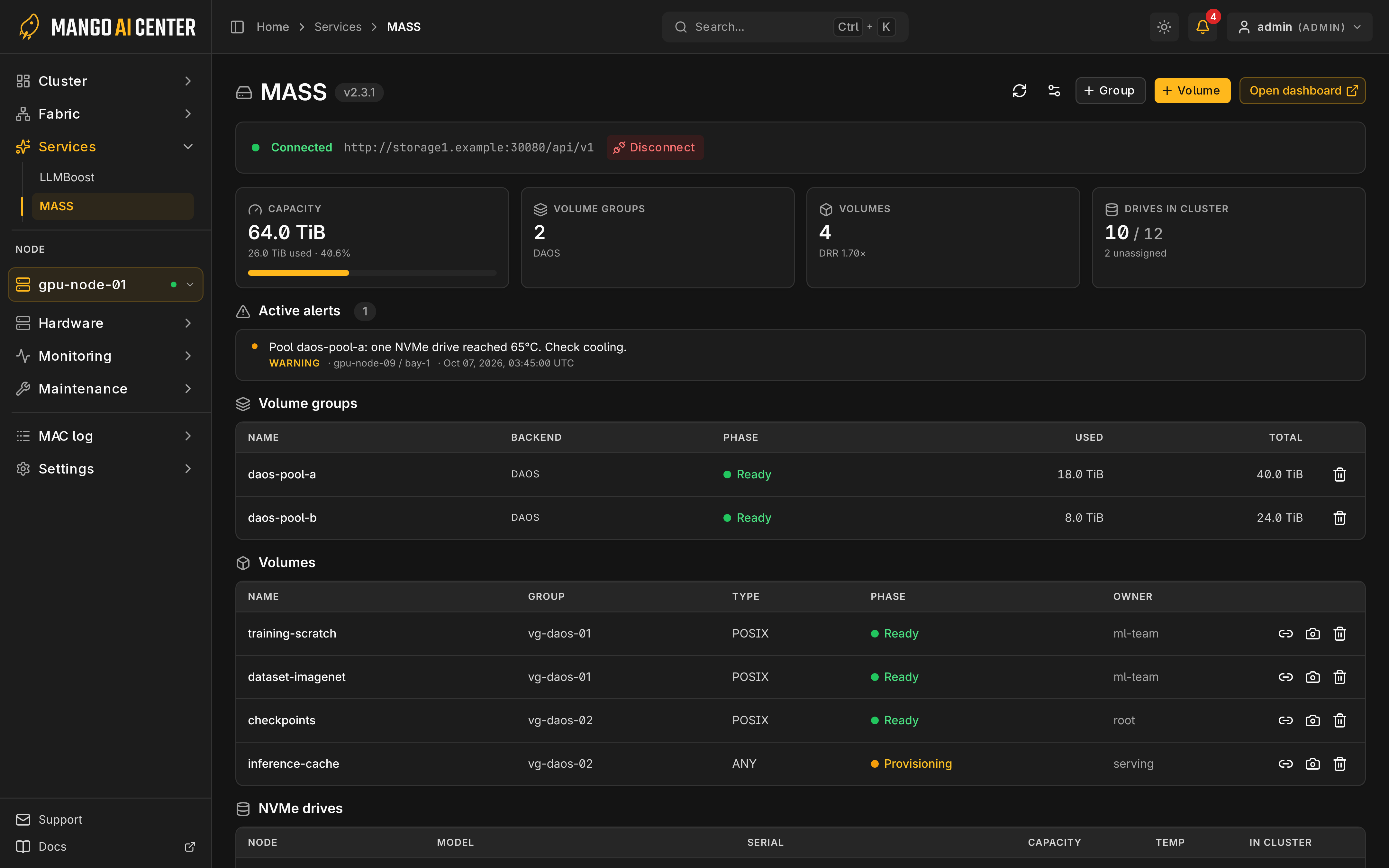
Connect and Read Status
An admin enters the Manager endpoint, username and password, then checks that the status
shows Connected. Settings entered here are lost on restart; to keep them, use
Environment. Changing the endpoint clears the password.
Open dashboard requires an external dashboard URL. Volume operations require
operator or admin.
Capacity and Objects
Before deleting a volume group or volume, check its scope and dependencies in MASS.
Create a Volume
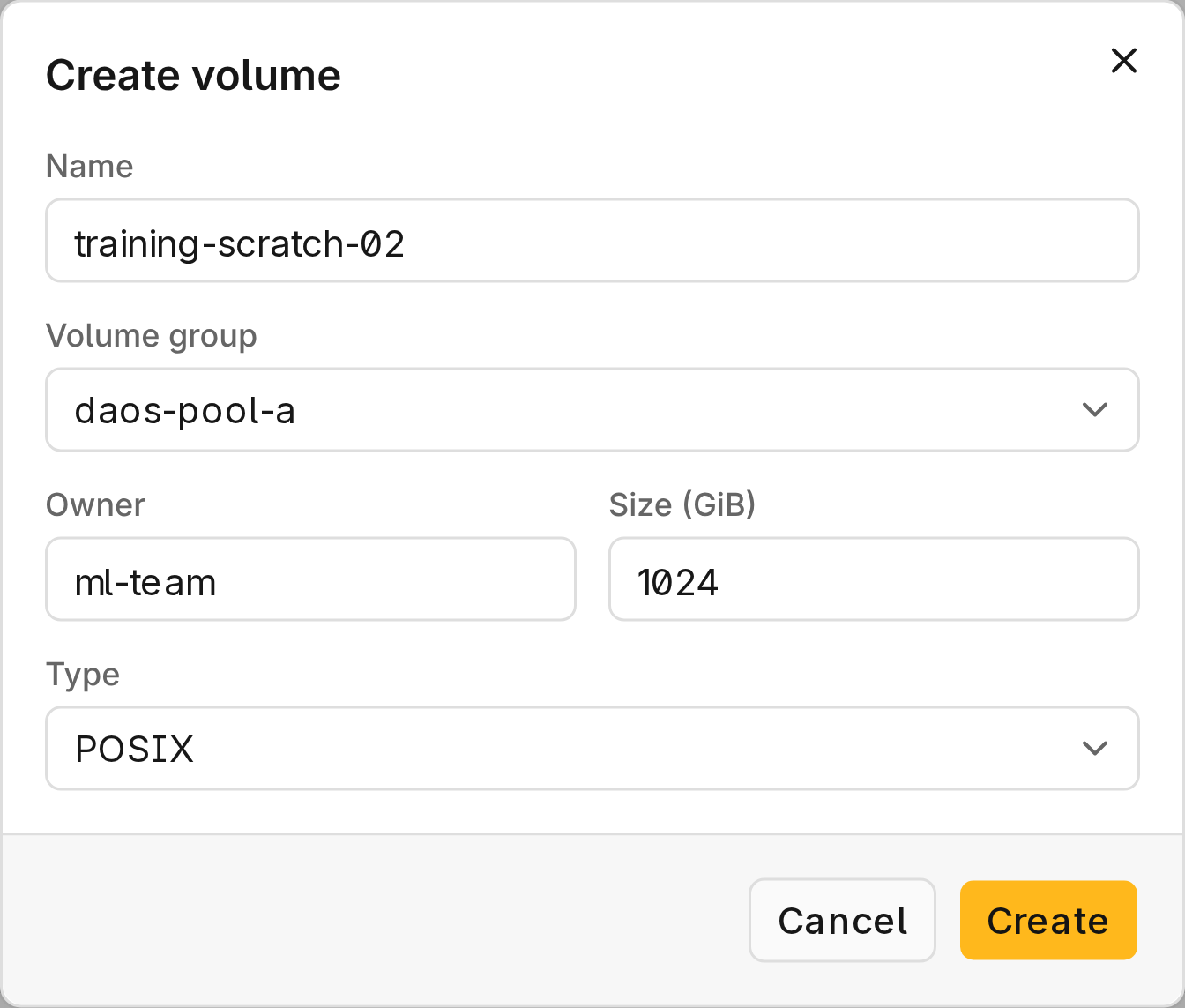
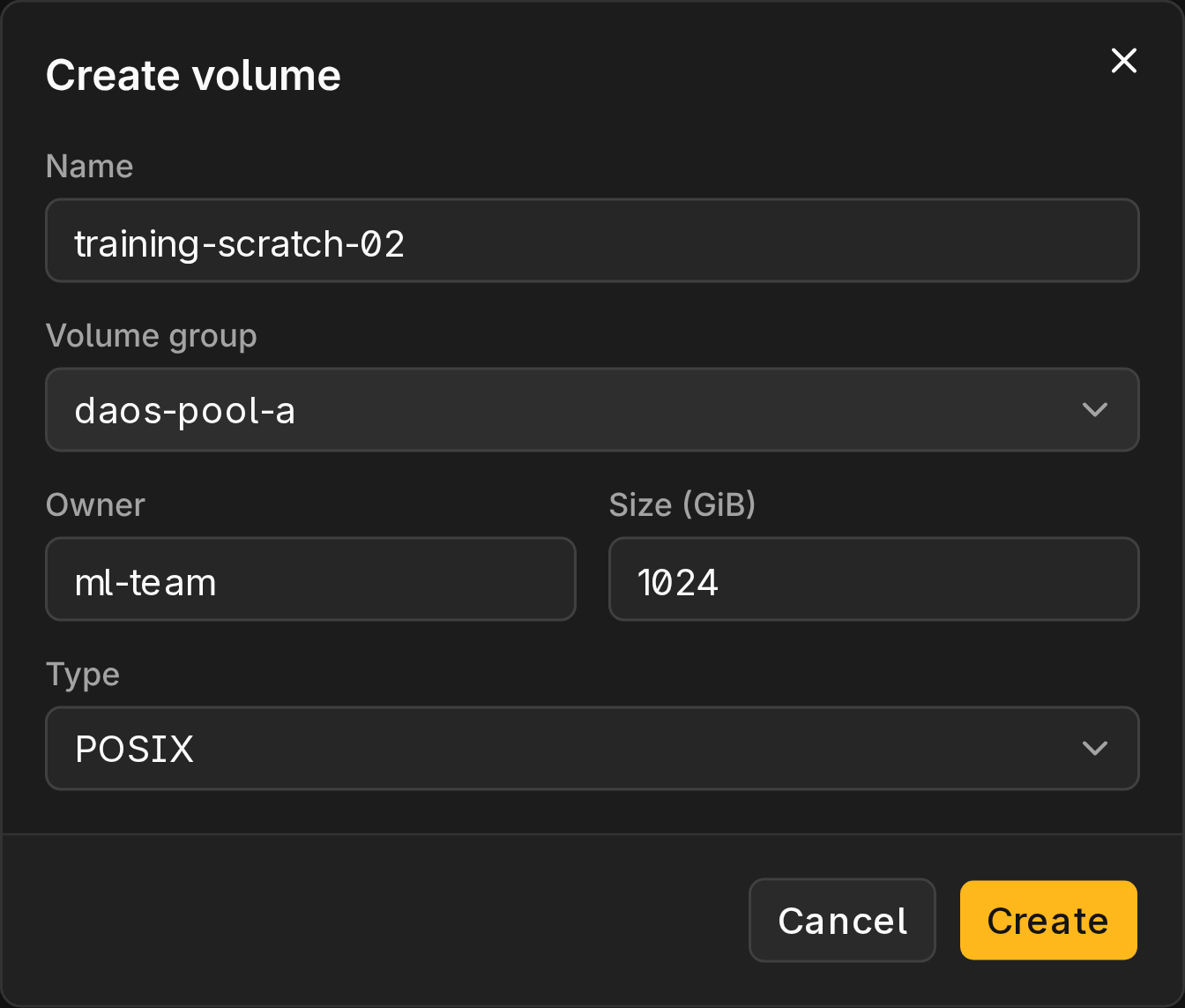
Select Volume, choose a group, and enter the name, owner, size in GiB and type.
Inspect Drives
Before adding drives to a storage pool, check their temperature and current pool in NVMe drives.
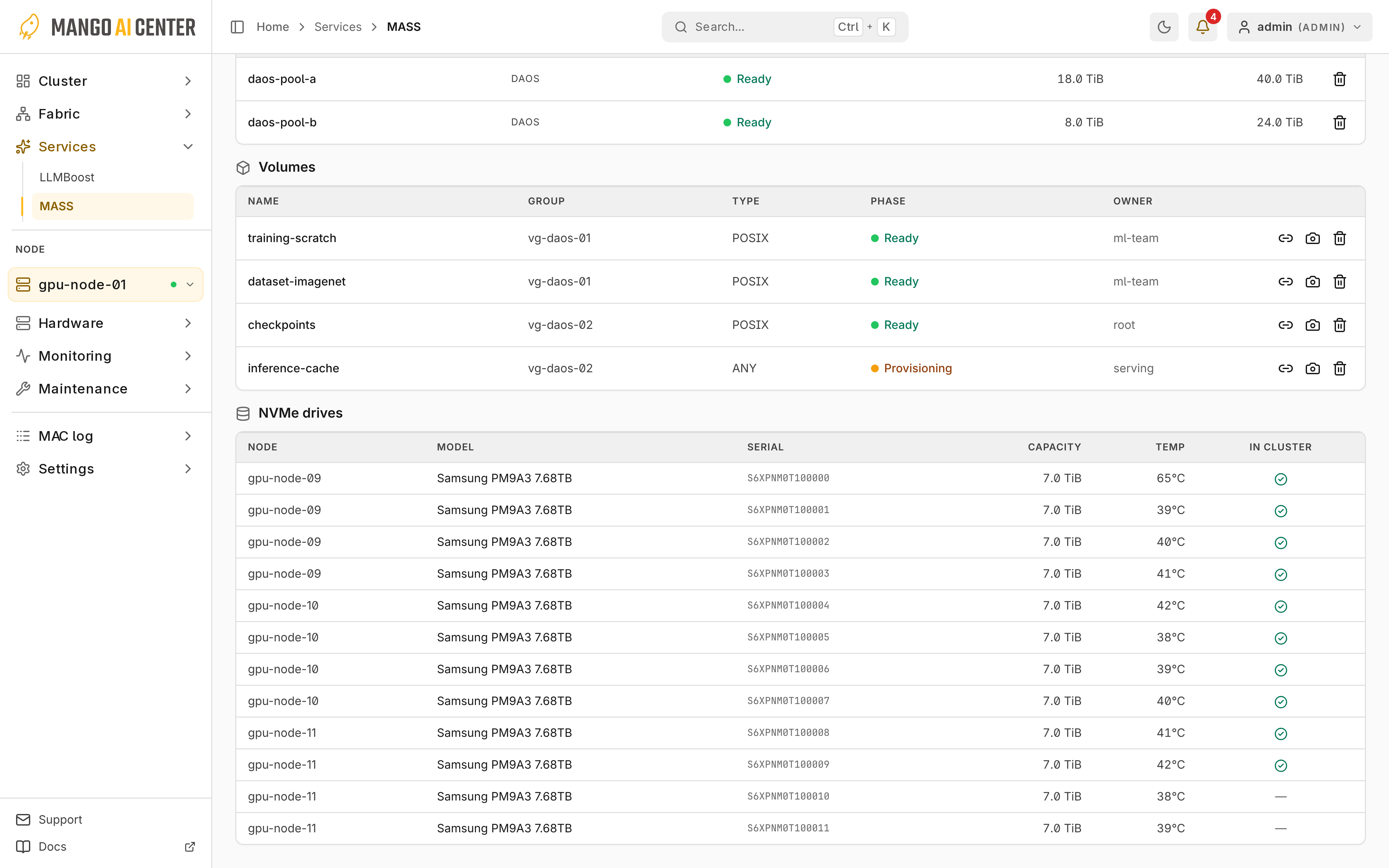
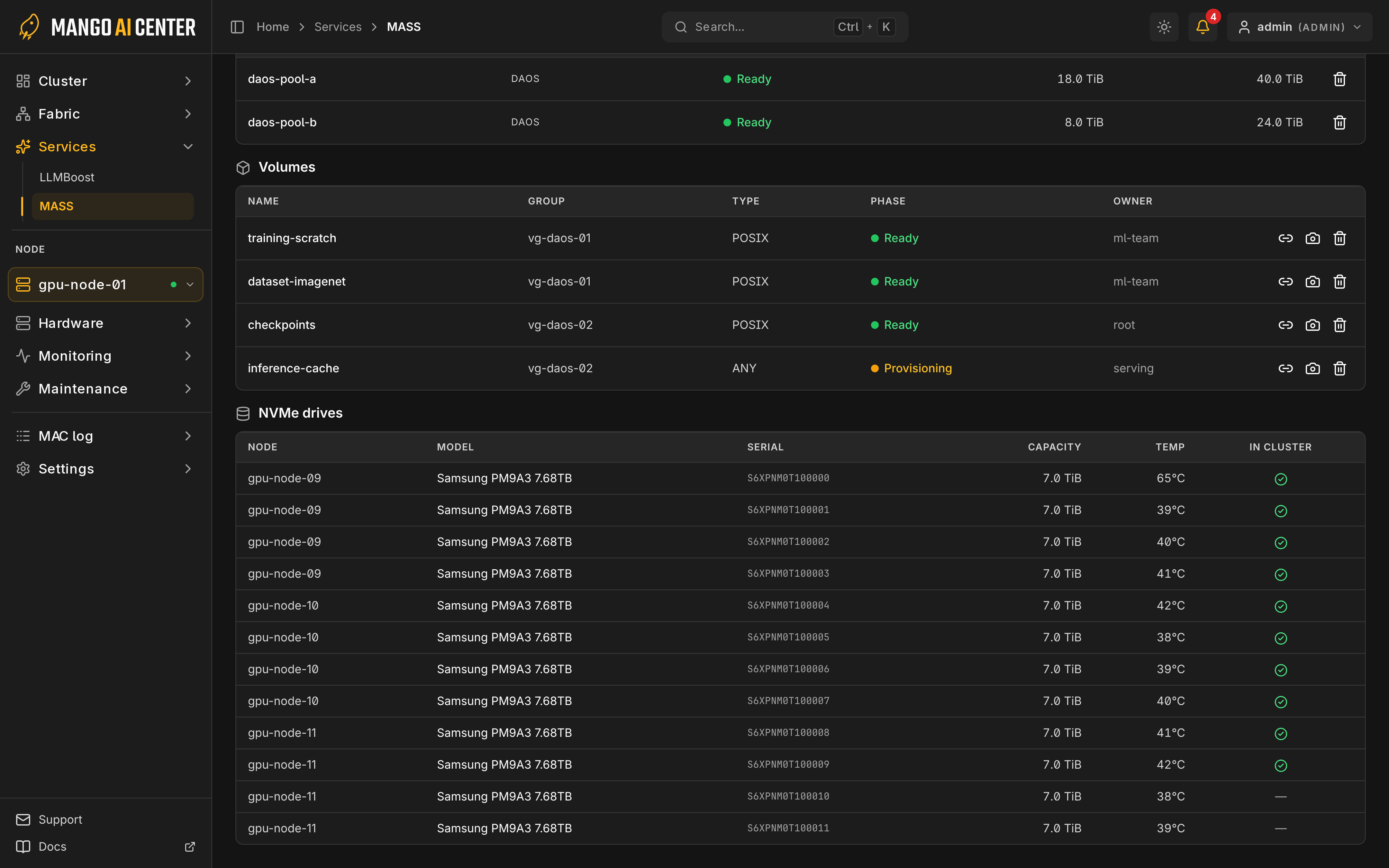
Attach to a Node
The node needs HTTPS access to MASS Manager, an mTLS client certificate and storage-fabric connectivity.
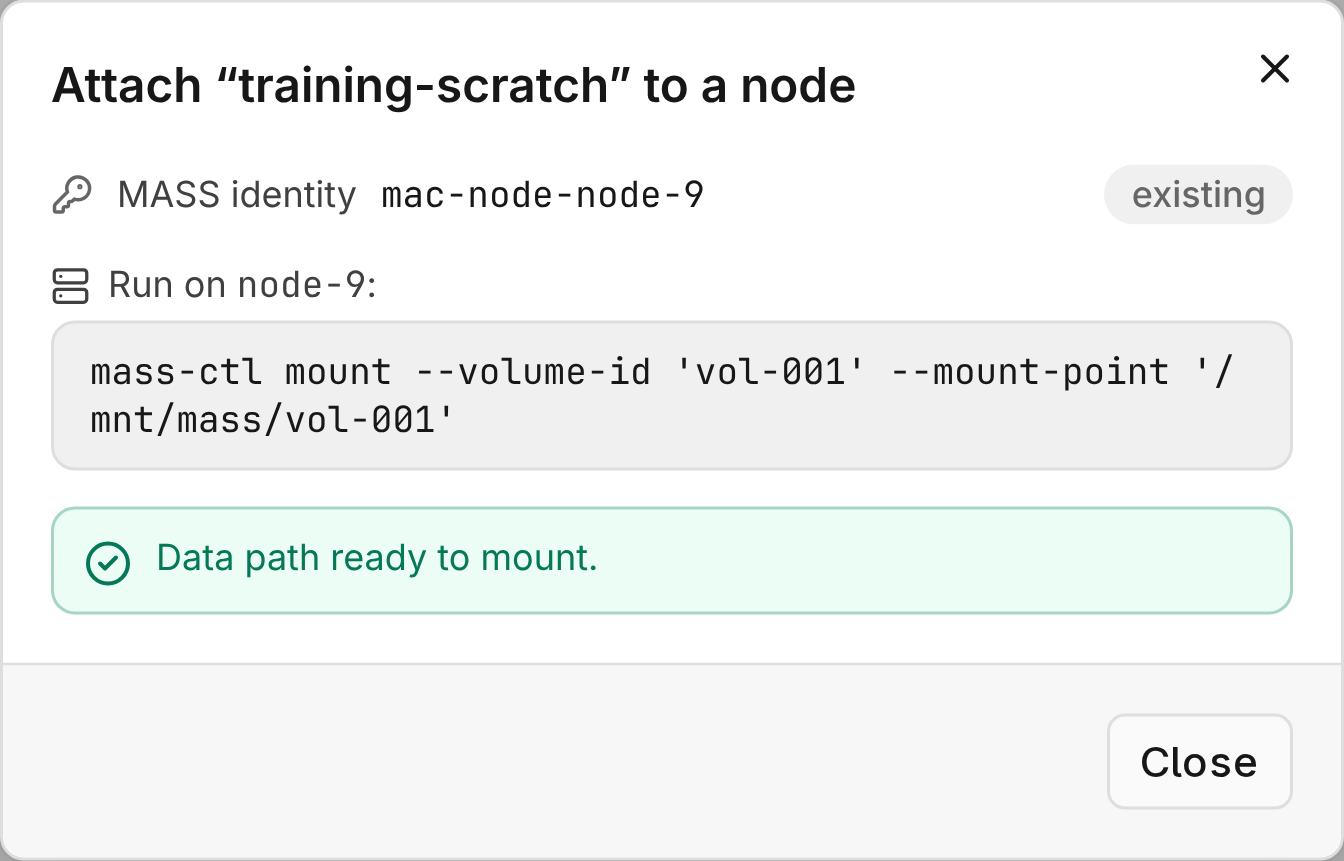
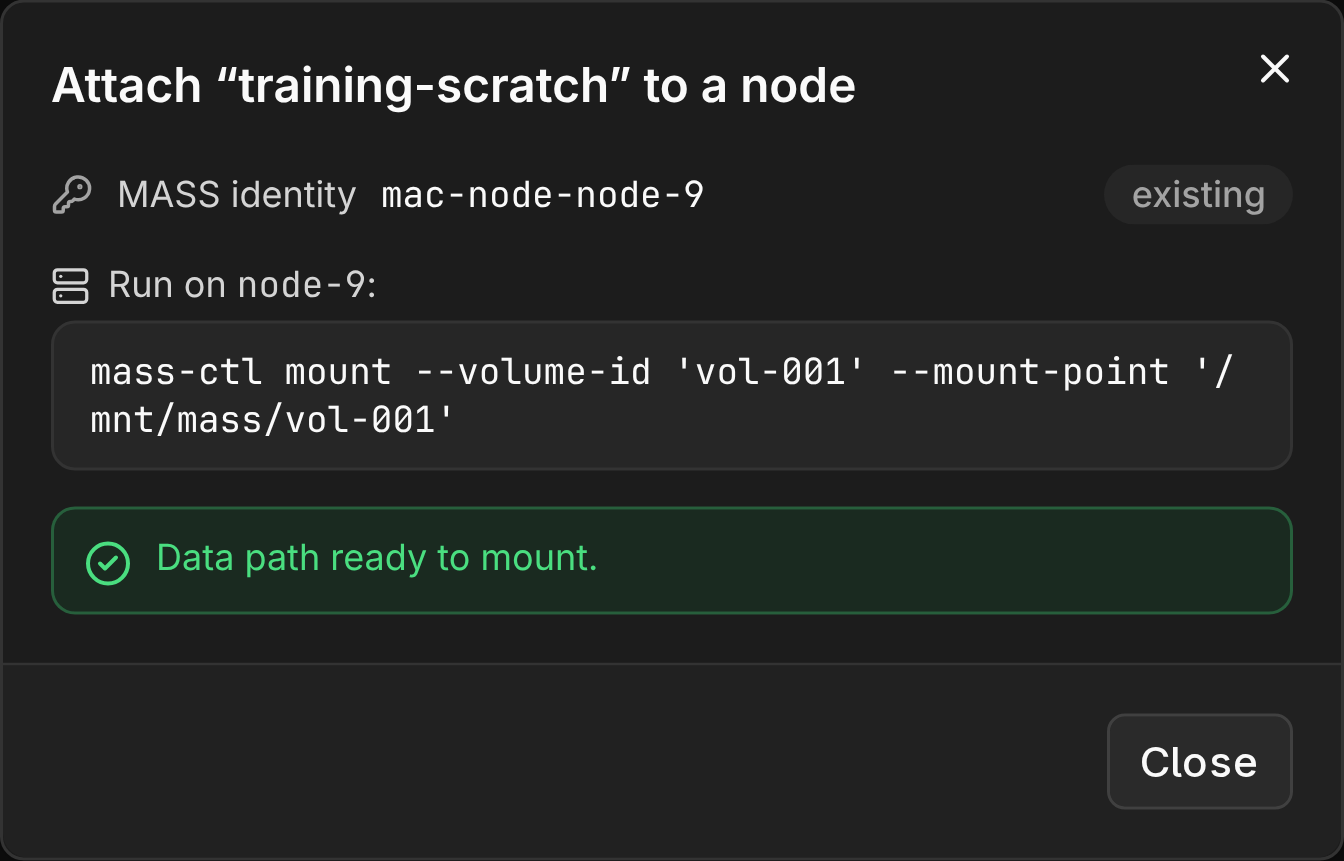
- Select Attach to node on the volume.
- Run the displayed
mass-ctl mountcommand on the node. - Verify the mount. Attach to node alone does not mount the volume.
Capacity History
Cluster overview charts MASS capacity history.