DPU Firmware Update
FW update on Hardware → NIC writes a firmware image to a MangoBoost DPU and resets the card to load it without rebooting the server.
A wrong image can leave the card needing hardware recovery, which MAC does not provide. Use the image MangoBoost recommends for the card model and port configuration.
Before You Start
- You need the
operatororadminrole. - Have either network access from the node to a public HTTP(S) firmware download URL or internal mirror, or a firmware image file received from MangoBoost in advance.
- The node must be Online in MAC: MAC can communicate with it. This status does not mean internet access; both URL and file upload updates need this MAC connection.
- If FW update is disabled, hover over it for the reason.
- Stop workloads that use the card; all its ports go down during the reset.
- If the dialog shows the card is managed by an
AutomaticKubernetes RNICNicFirmwareTemplate, update it from one place only.
How to Check the Deployed DPU Firmware
Open Hardware → NIC and select the node.
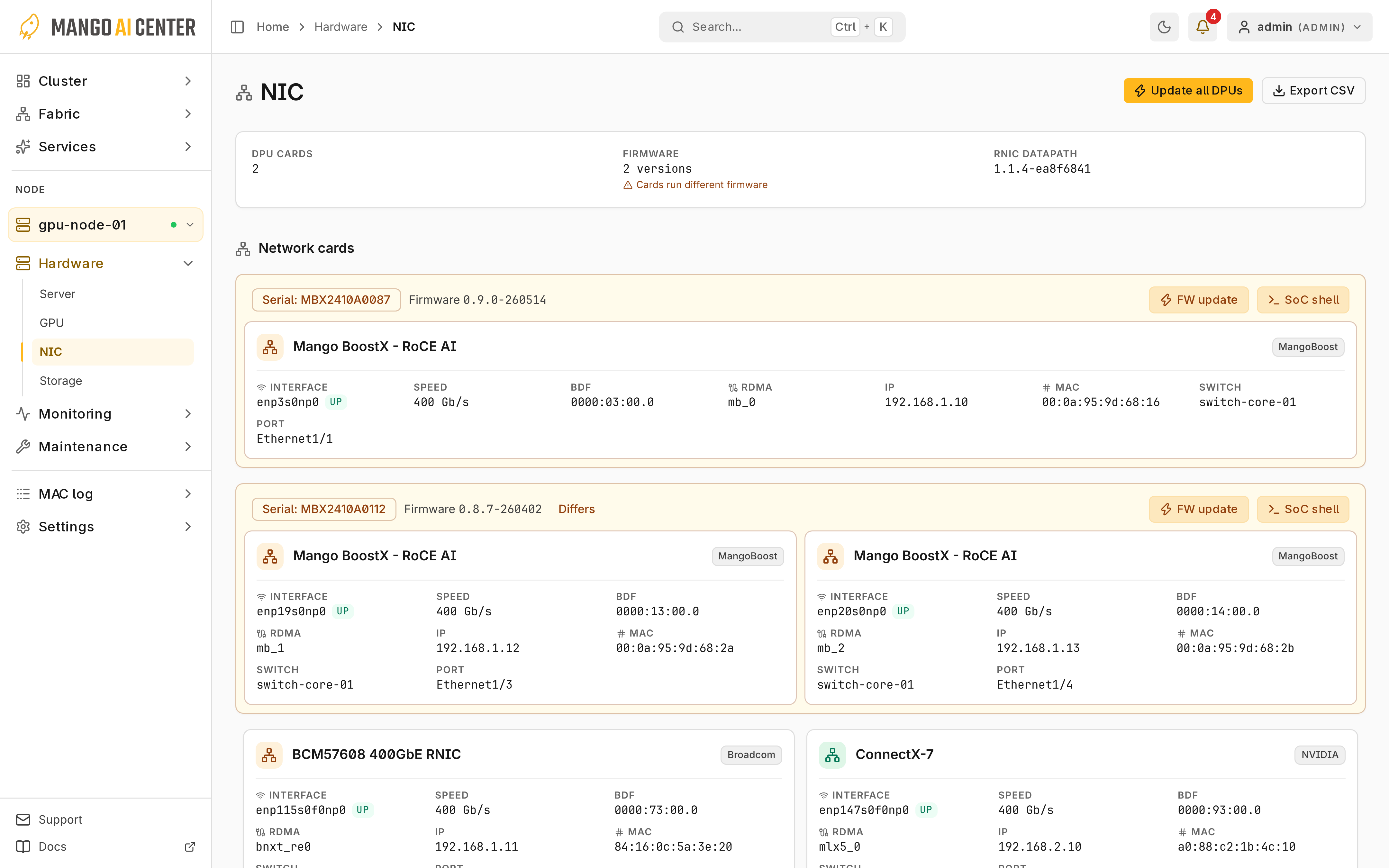
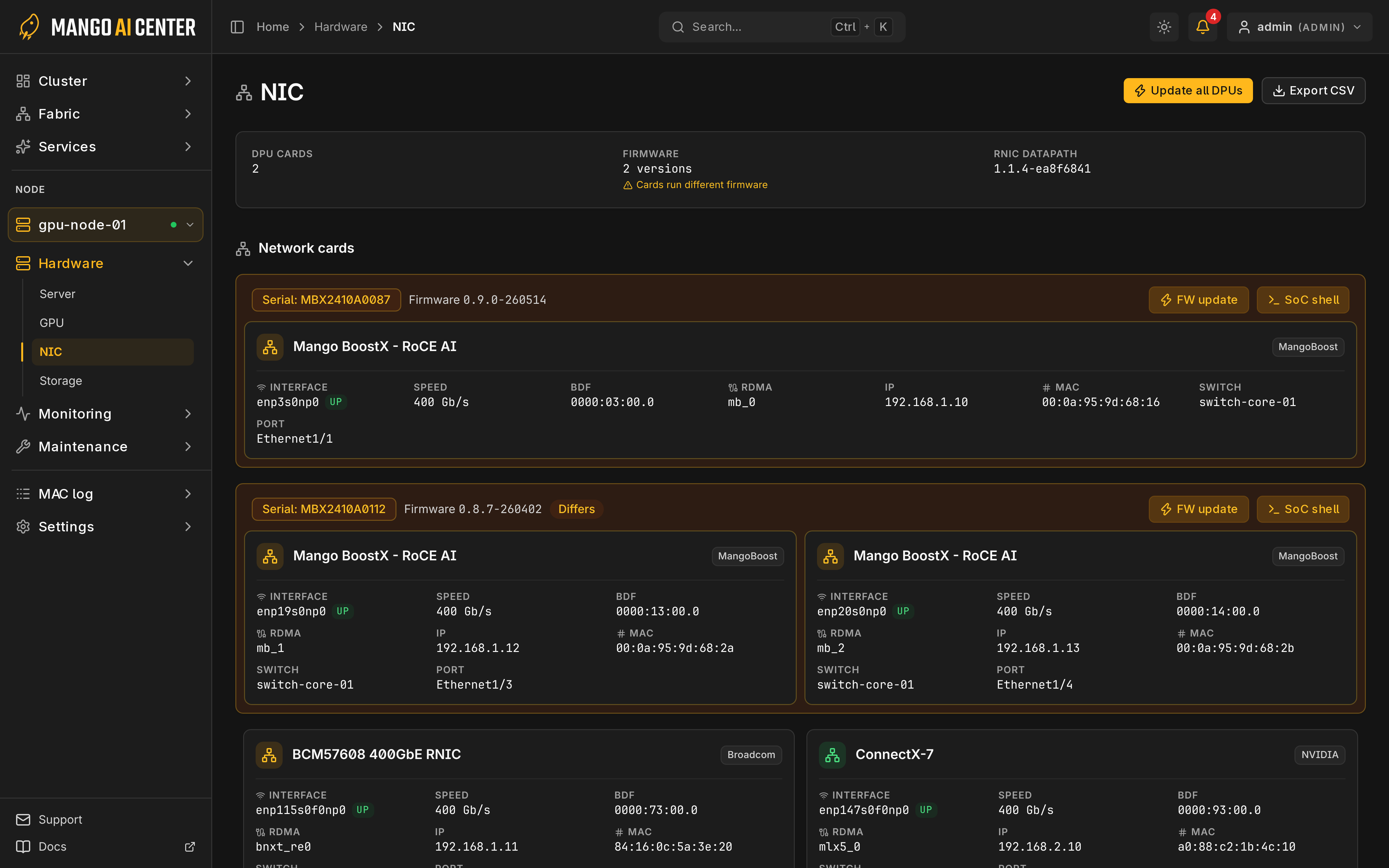
Each card shows its firmware version. Differs marks cards not on the most common version.
DPU Firmware Image Types
| File | Image type |
|---|---|
.pdi | Card image: FPGA bitstream with bundled firmware |
.tgz | Card OS bundle |
How to Update DPU Firmware?
Two Ways to Update
| Method | What you need | How the image reaches the node |
|---|---|---|
| URL | A public HTTP(S) download URL or internal mirror reachable from the node | The node downloads the image directly |
| File upload | An image file received from MangoBoost in advance and saved on your computer | Your browser uploads it to MAC, which forwards it to the node; the node does not need access to a firmware download URL |
Use the Remote URL
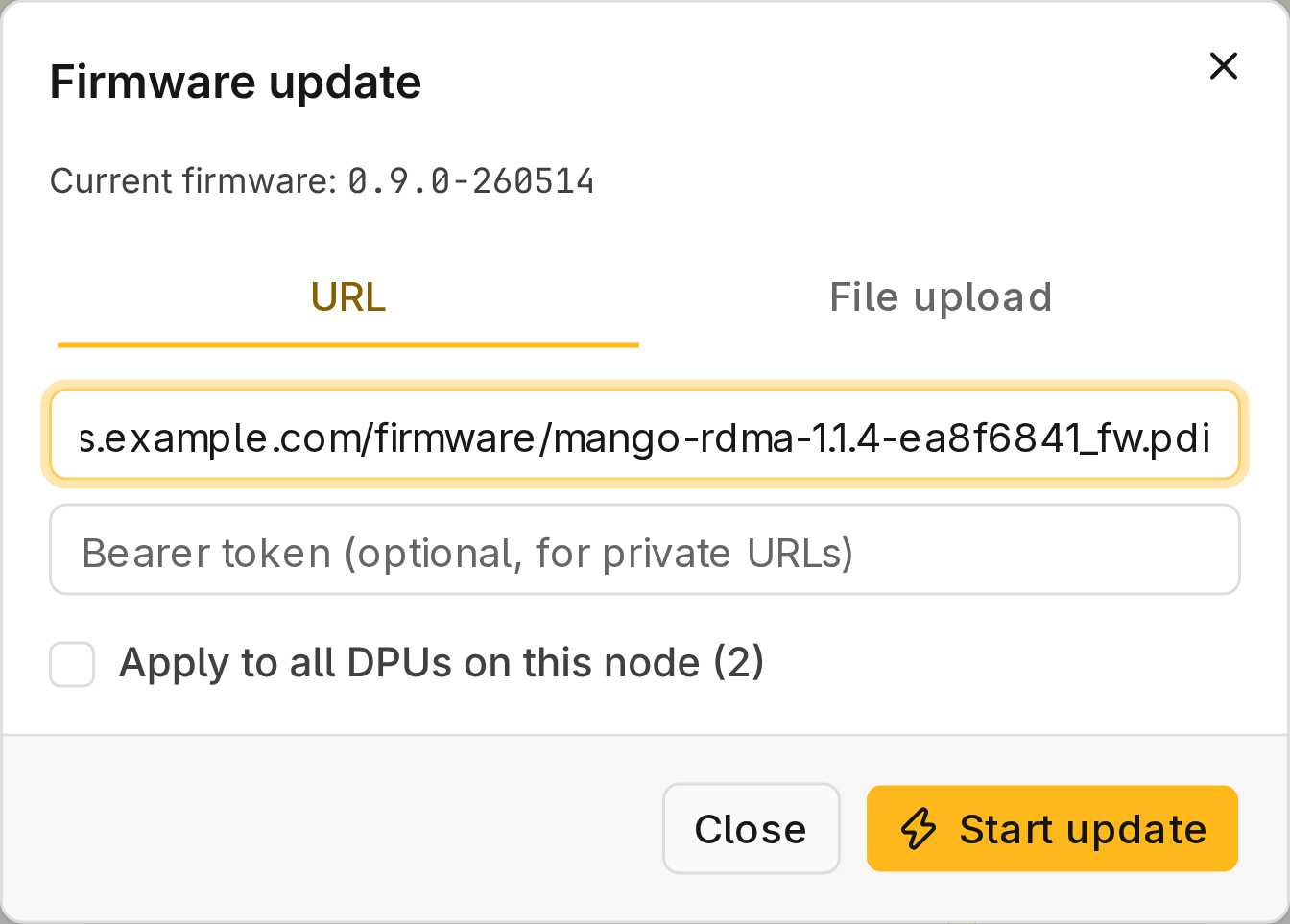
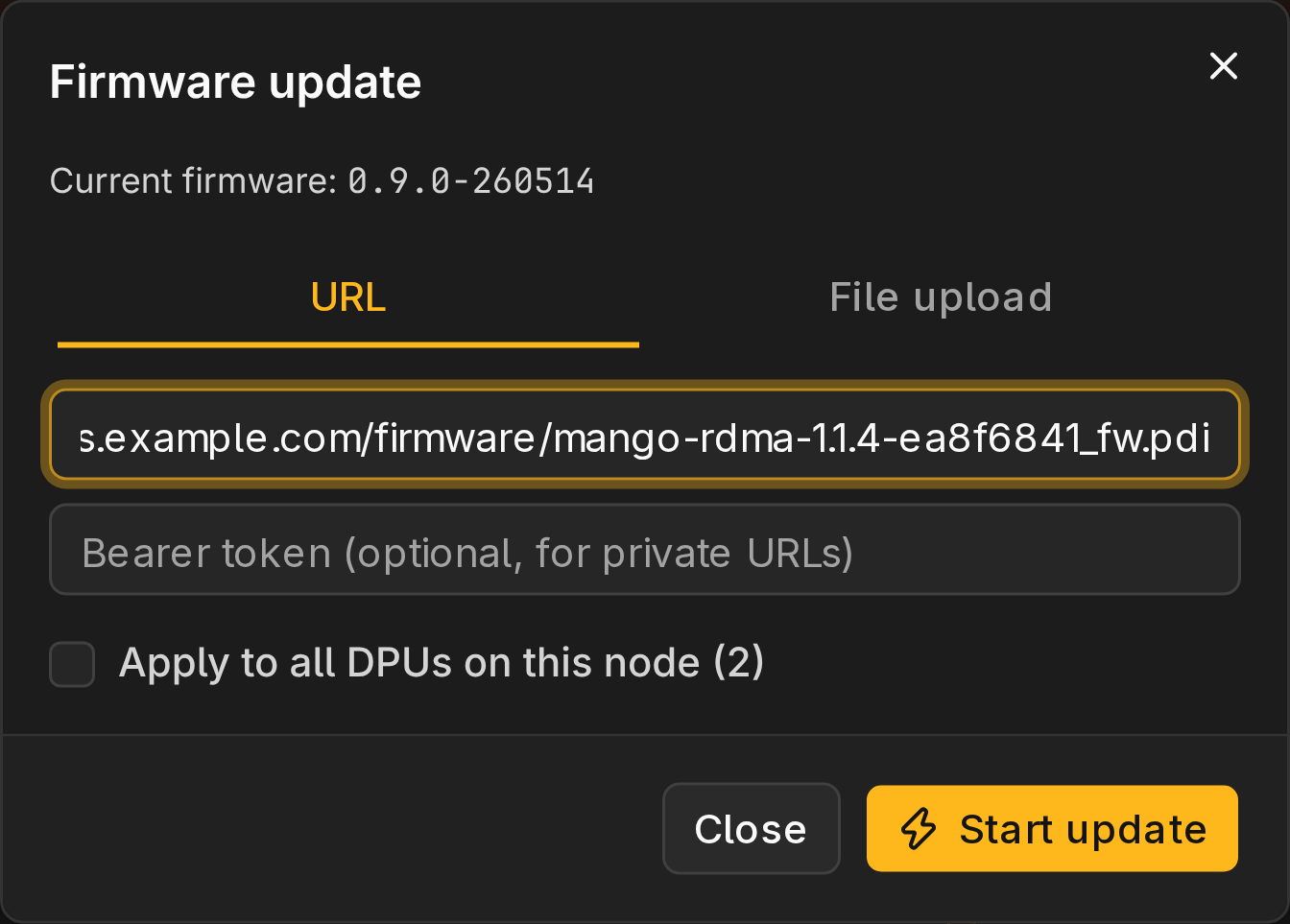
Select URL and enter the HTTP(S) download URL. Put any token in Bearer token, never in the URL; the Audit log records URLs but hides bearer tokens.
Upload the Image Files
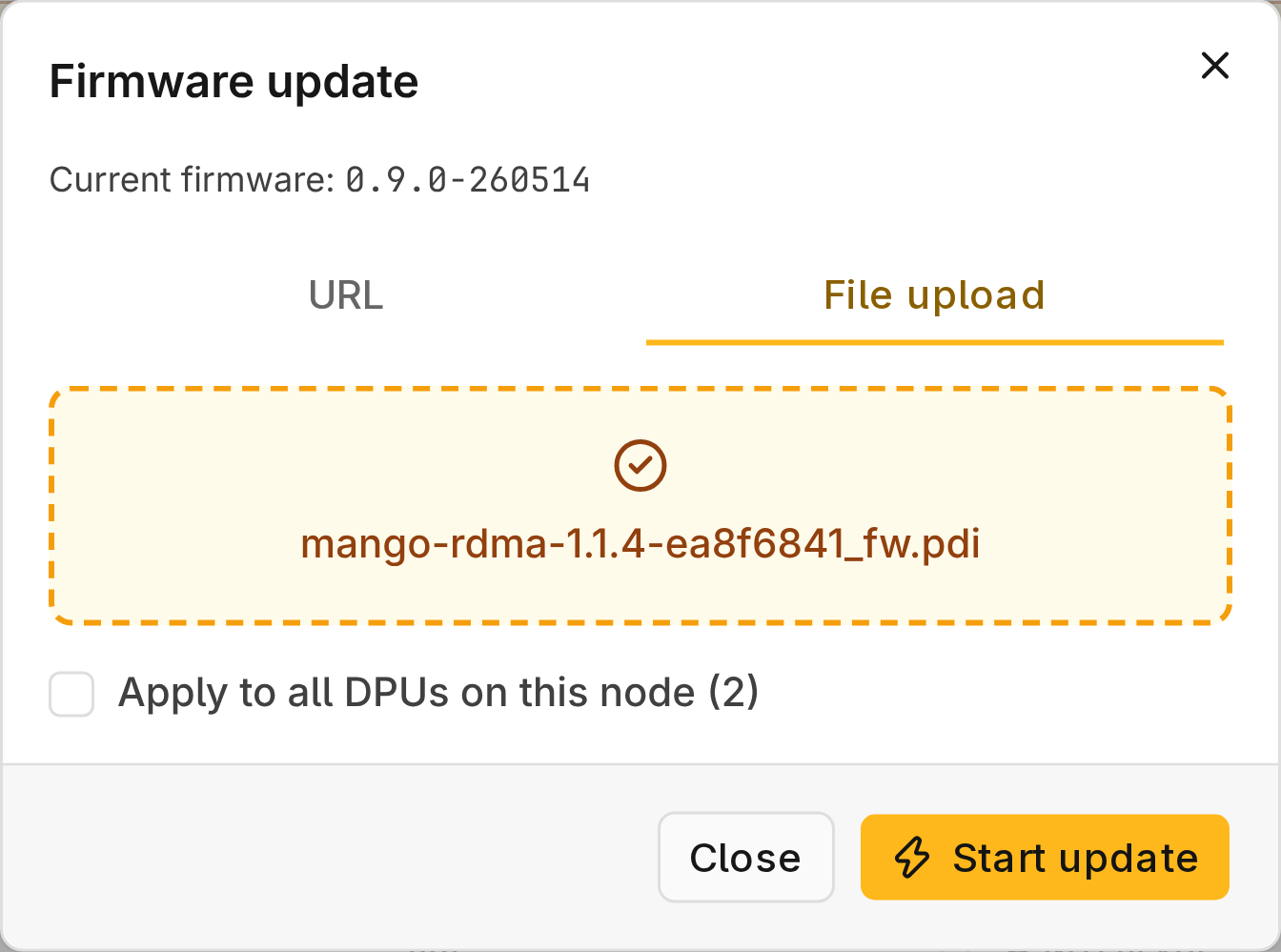
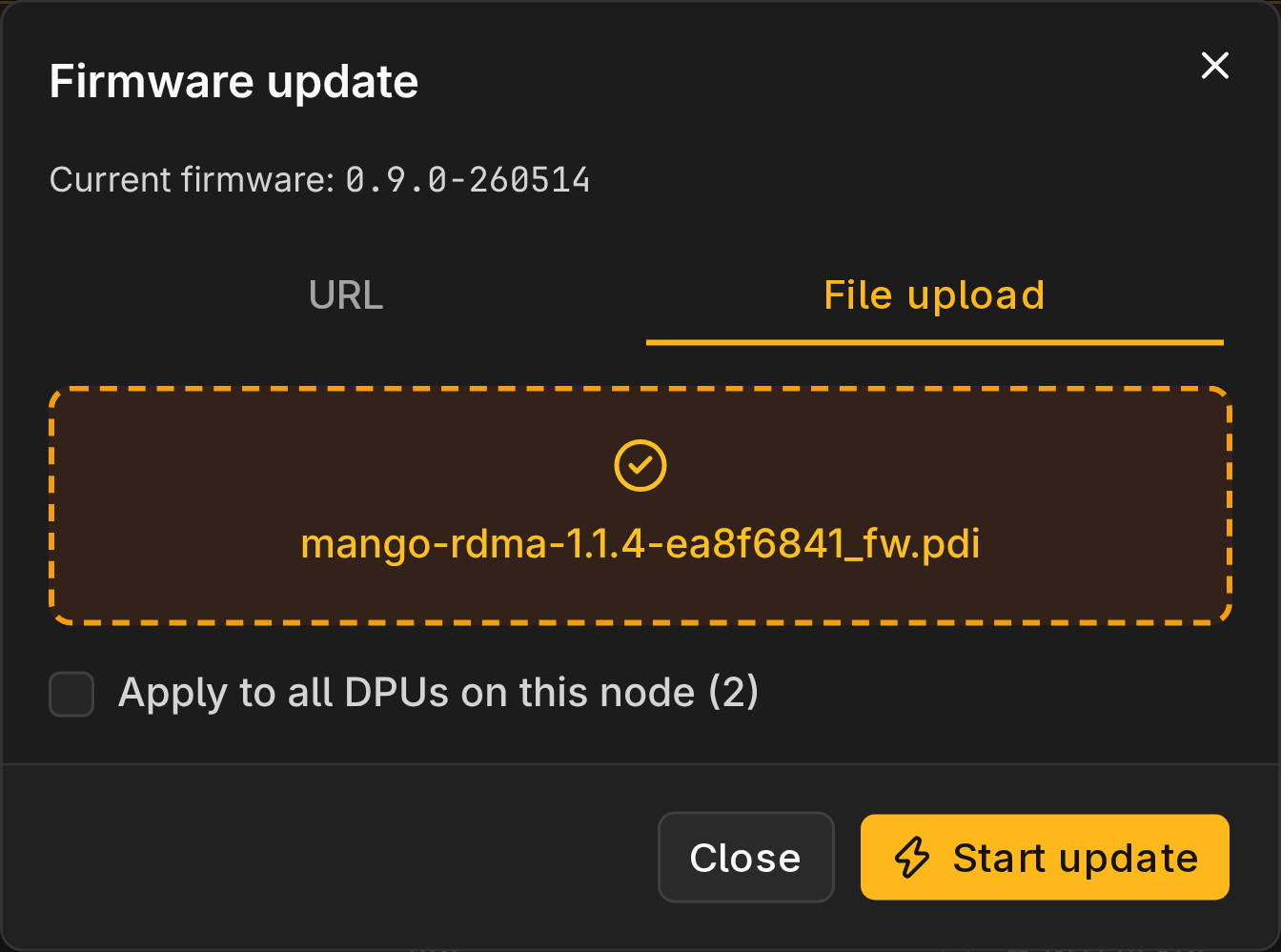
Select File upload, then choose or drop the .pdi or .tgz image file you received
from MangoBoost and saved on your computer.
Update One DPU Card
- Open Hardware → NIC and select the node.
- Select FW update on the card.
- Provide the image and select Start update.
- Select the card's Updating… status to follow progress until Completed.
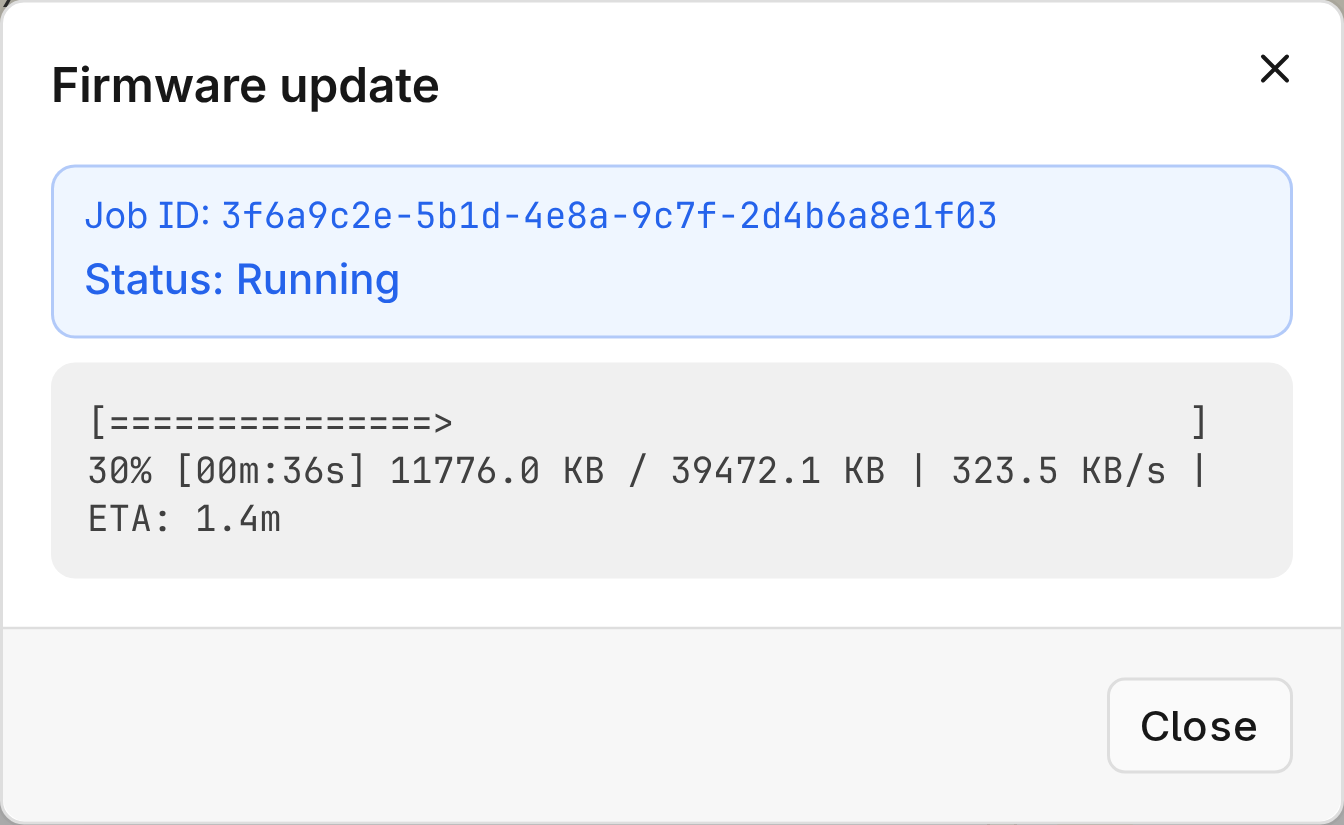
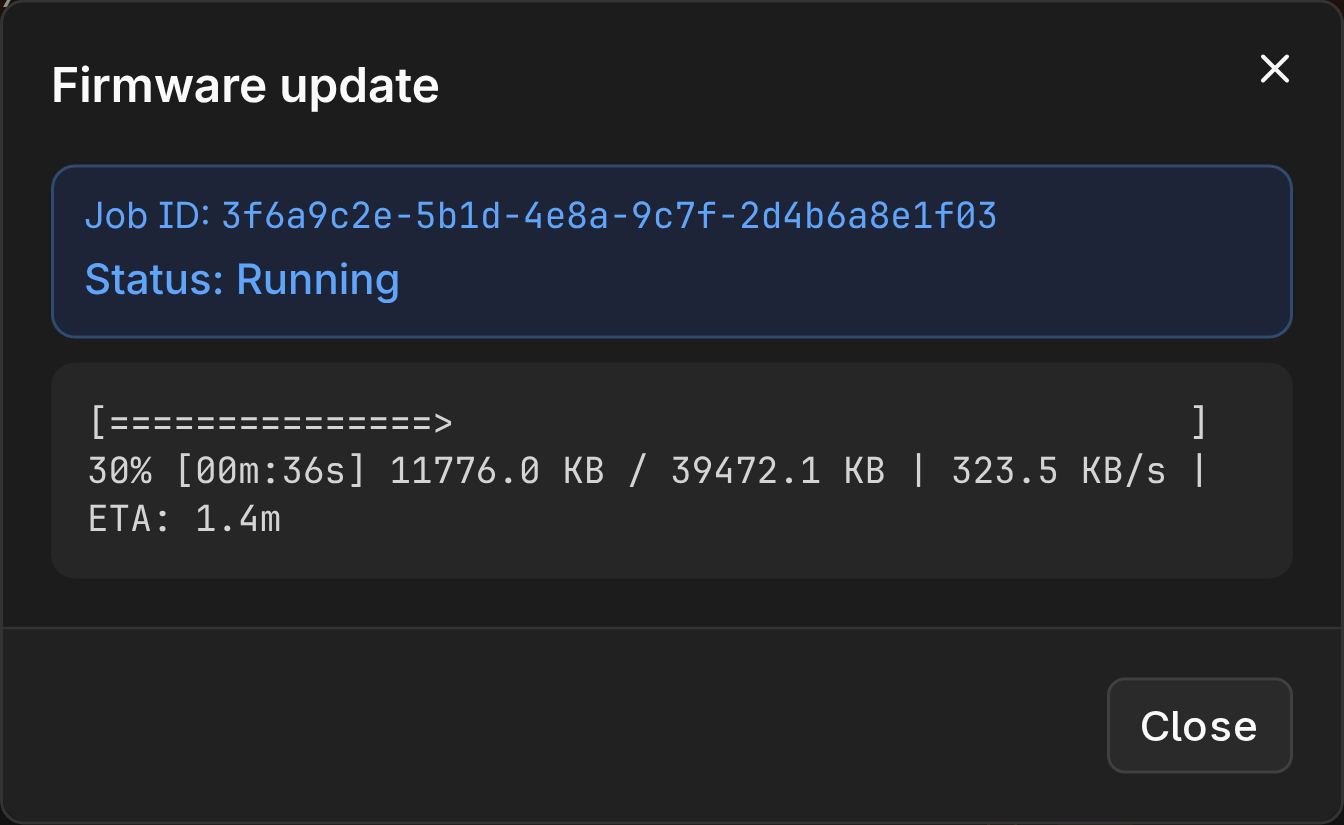
The update continues if you close the browser. If the job shows Failed with "Job no longer trackable" or "Status polling timed out", check the card's firmware version before retrying; the update may have finished.
Keep MAC and the node running and powered until the update finishes. Interrupting a write can leave the card without a bootable image.
Update Multiple DPU Cards in Multiple Servers
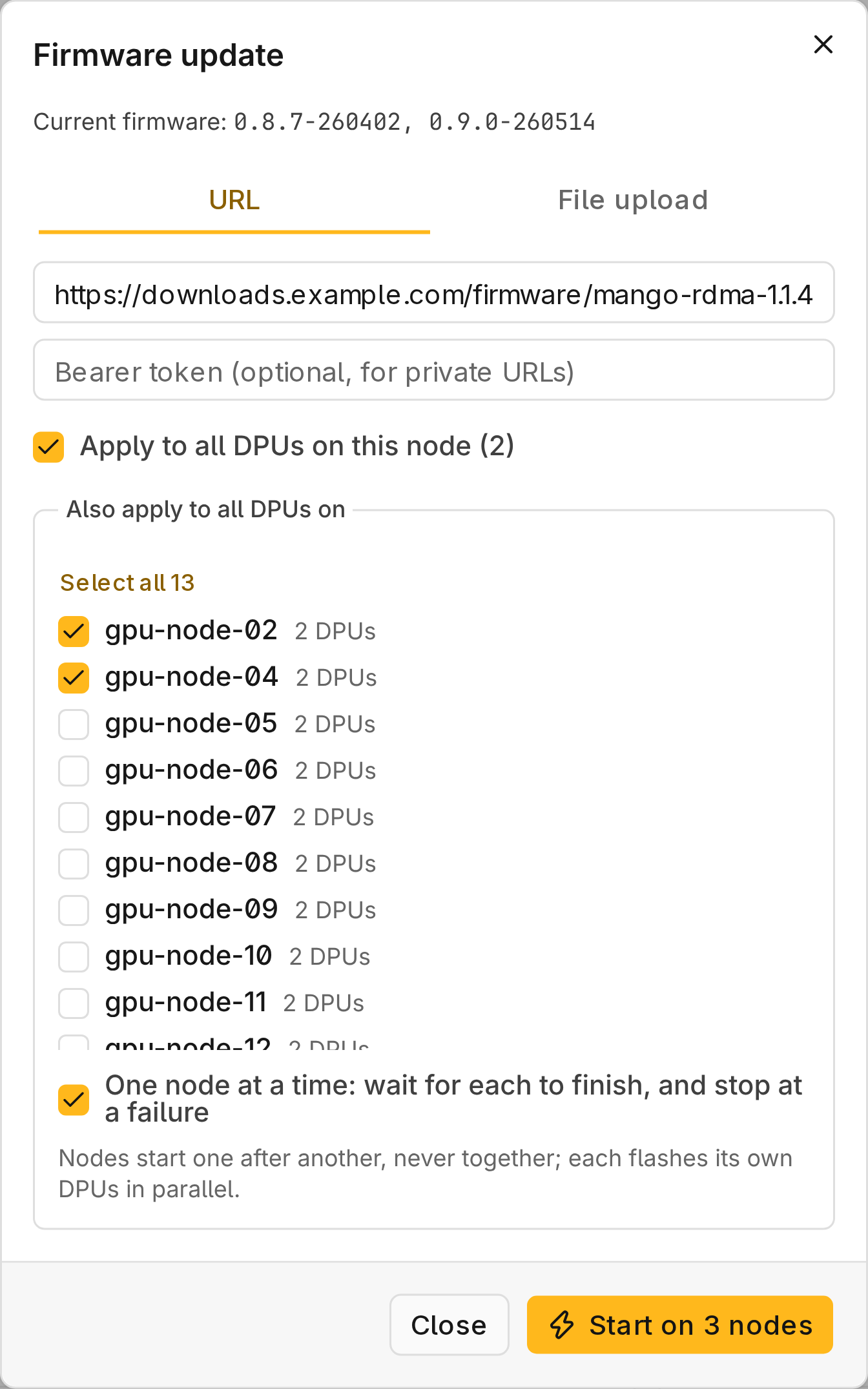
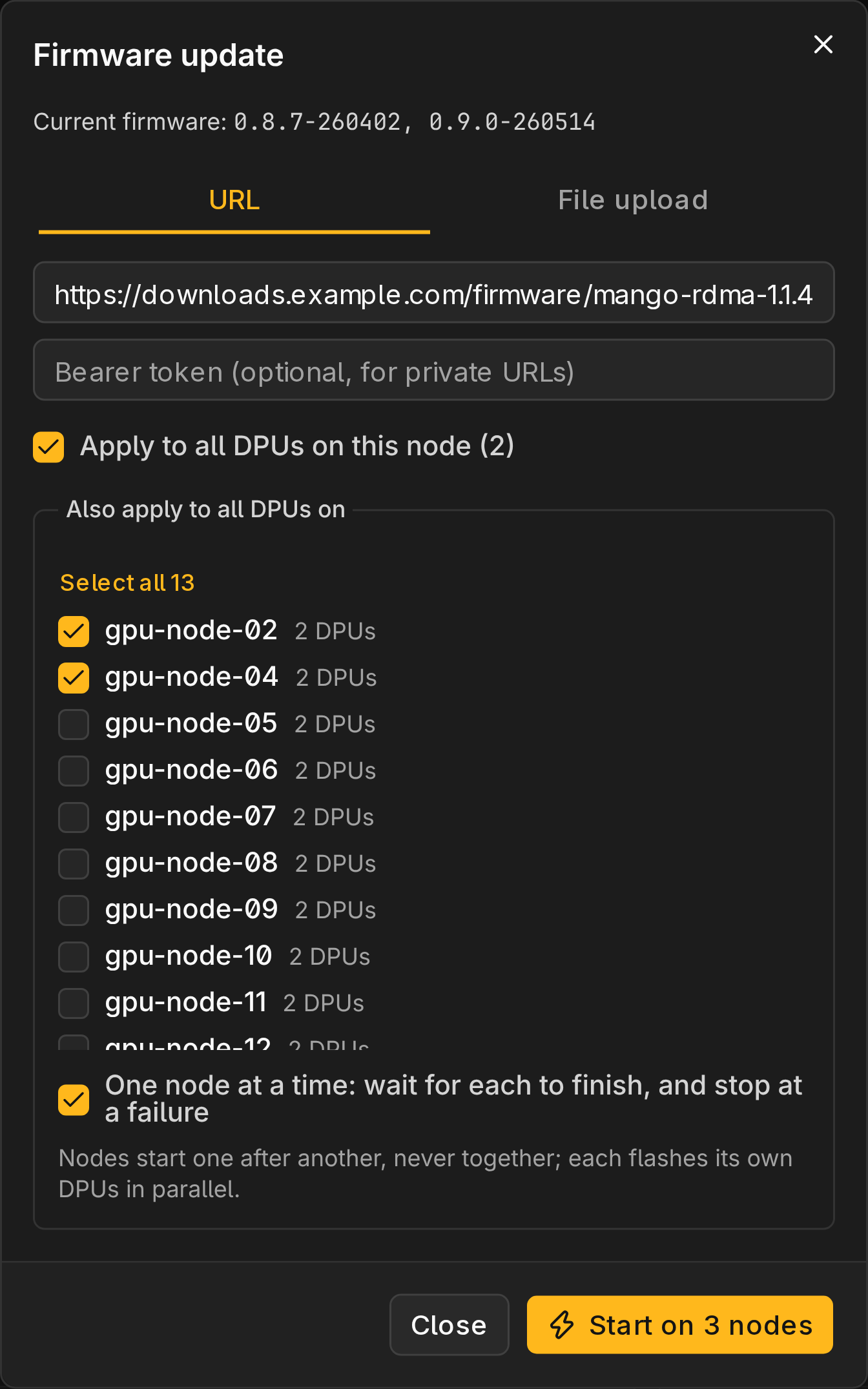
- On the NIC page, select Update all DPUs to update every card on the node.
- To include other nodes, select them under Also apply to all DPUs on.
- Provide the image and select Start on N nodes.
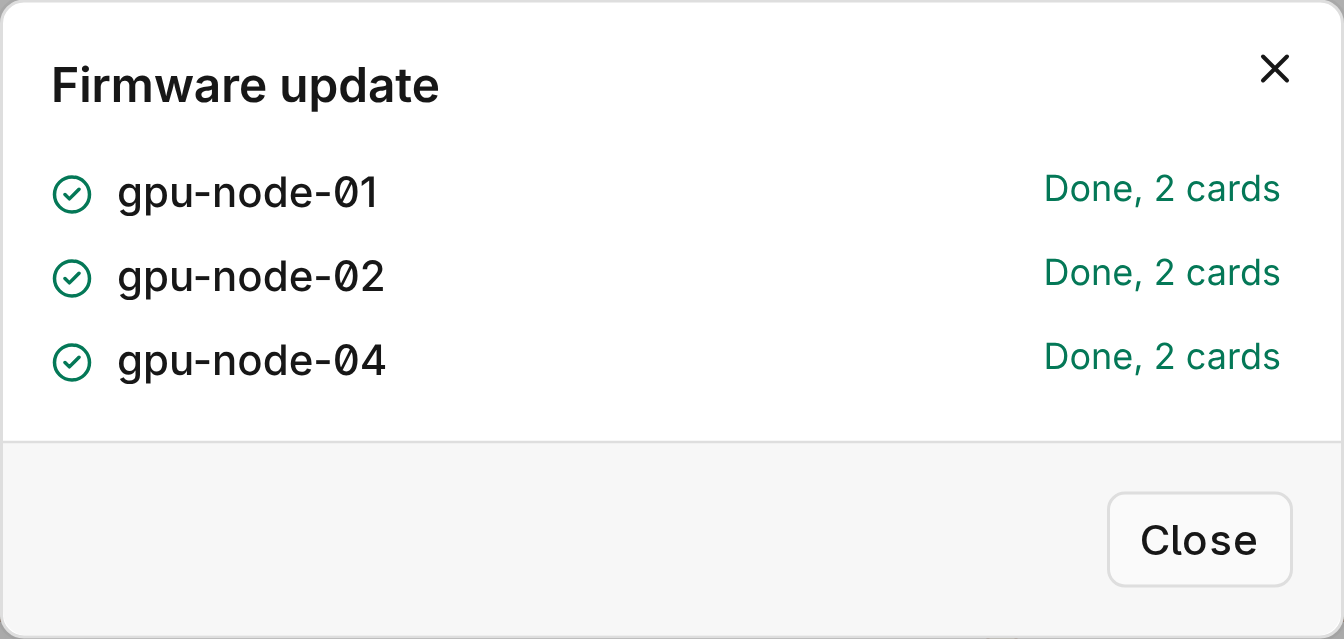
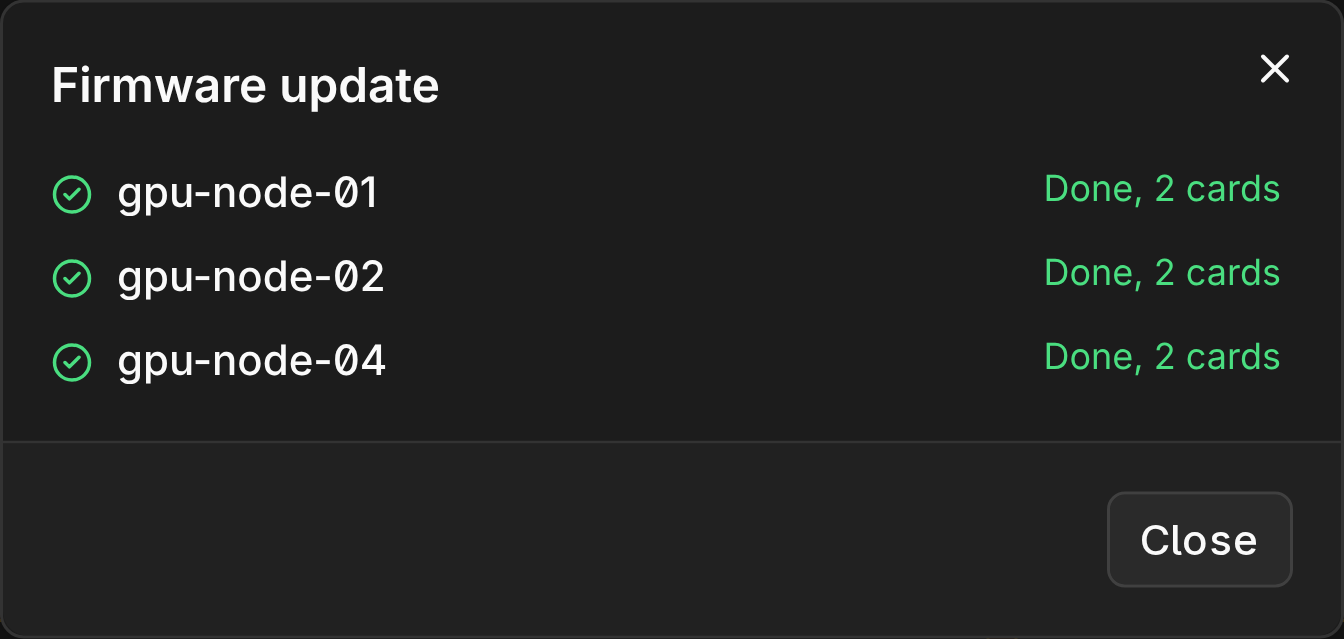
- Keep the page open until every node has started.
With One node at a time, a failure leaves the remaining nodes Not started. Stop remaining nodes skips nodes that have not started.
How to Check if the DPU Firmware Is Updated Successfully?
- Wait a minute, then reload the NIC page.
- Confirm each card's Firmware shows the intended version.
- If the version is unchanged or the card's function changed (such as base NIC to RDMA), power-cycle the server. A warm reboot does not reload the image.
- Reapply runtime network settings such as IP address or MTU if your configuration does not, and verify links in Performance.
Troubleshooting
| Message | Action |
|---|---|
Download or write failed: … | Check the URL and Bearer token, or upload the file. |
Error: the image is not a PDI, invalid image file size or Missing expected file in archive | Get the correct image file. |
An error ending in ; reflash it | Verification failed and the card was not reset. Update it again before any reset or power cycle. |